Multiple Images
In the Grid & Slider layout Widgetsbox offers you an interesting feature that allows you to use multiple images for one element. The images are then displayed in a slideshow within the respective element. The cool thing is that you can combine different image sources thanks to fallback options.
Predefinitions
The system with multiple images for one element works exclusively in combination with Joomla's own
Customfield of the type Subform and a corresponding field of the type Image In each subform element only the
first
image will be used, see this visual example of an article's customfield section of type Subform:
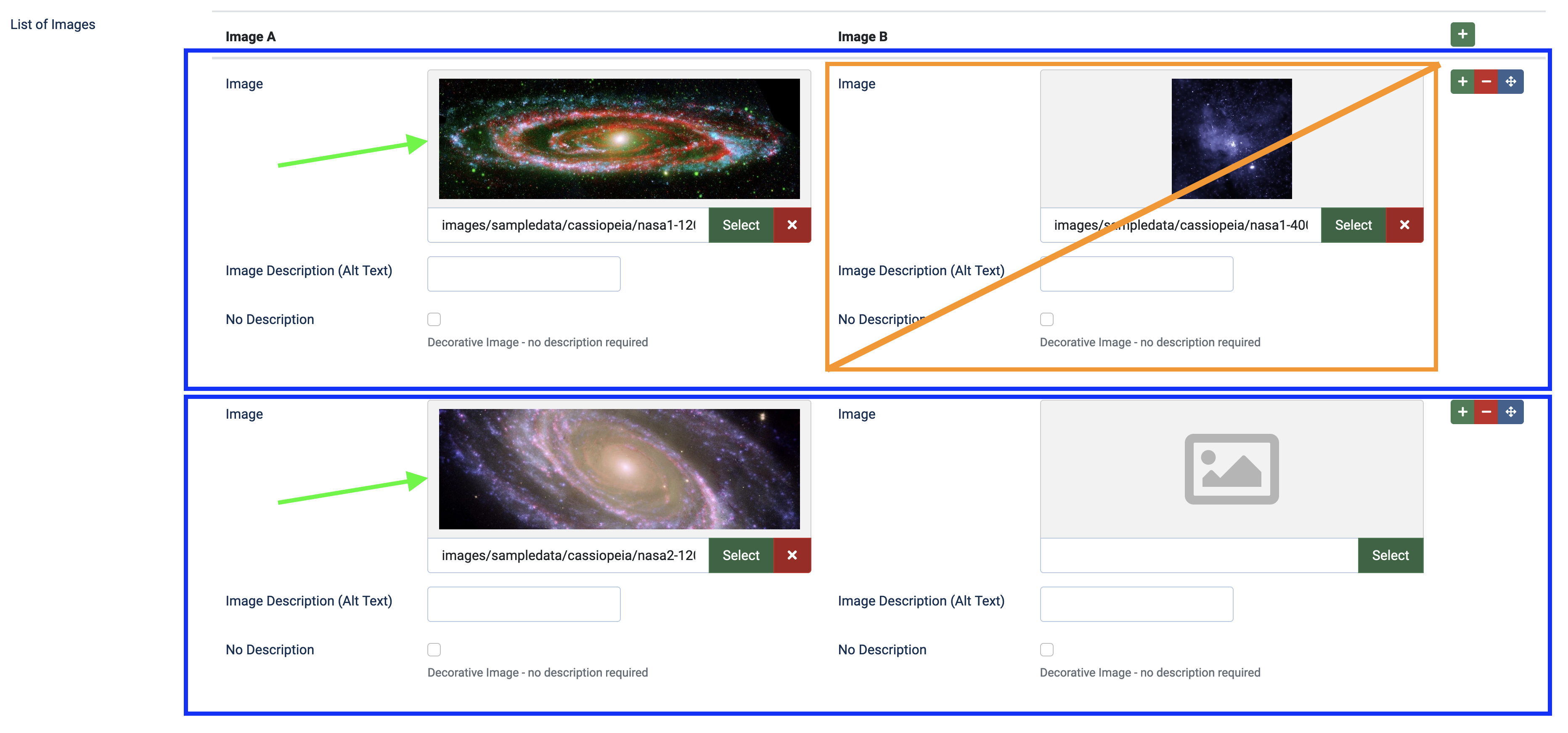
The areas marked in blue are an element of the subform, the first image in each such element is used by WidgetsBox for displaying multiple images. Further images within an element (marked in orange) are not used.
Create Custom Fields for Multiple Images
First we need to create a new Custom Field of Type Image Naming is not relevant, but it might be a good idea to set
the field to be only used in Subforms via the option Only Use In Subform.
Next we create a new Field of Type Subform. This field will hold our before created Image-Field. So select in the
Fields Section your previously created Image-Field. If the Field is not visible you may have to make sure that your
Image Field is published. And that's it - If you open now any of your article's you will
see that there is a new Tab called "Fields" and within this section you can Add Images to your article that will be
later used in WidgetsBox.
My Images got displayed on the Article Page
If you are using a template that shows auto-published Custom Fields on the article page you might need to switch to the
Options Tab in your Subform Custom Field and select Do not Automatic Display for the Automatic Display Option.
Module Setup
In order for WidgetsBox to use these images from the Subform Custom Field we need to configure it that way in the
module settings.
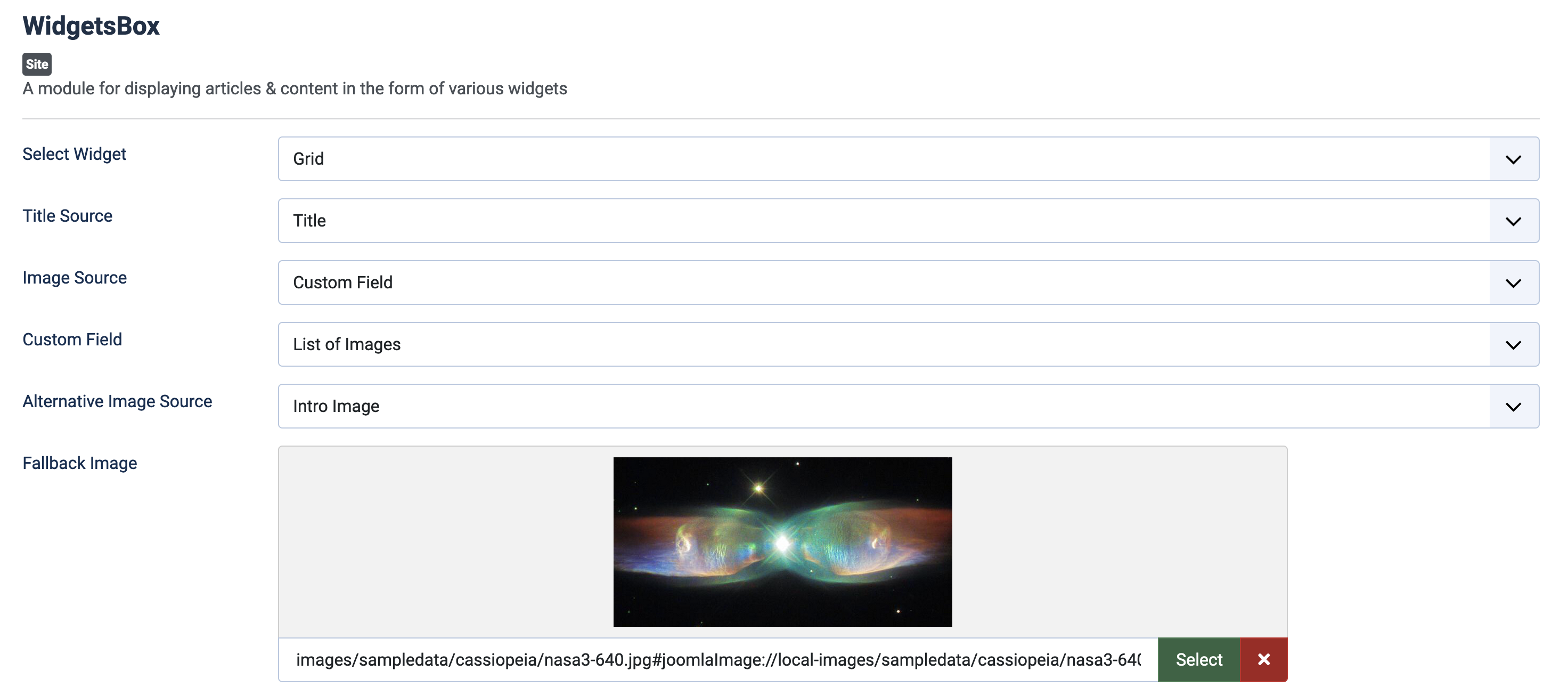
So in the example above we selected Custom Field as Image Source after this option got selected you will see a new
option below called Custom Field. Here we select our Subform Field Type that we have created. Additionally we can
set an Alternative Image Source that will be used if we did not have an image setted up in the article's custom
field.
Configure the module now as you like, if available the module will use the images setted up in an article's Custom Field Section as images inside WidgetsBox. For the Slideshow the ratio of the first image will be used to define the ratio of the slideshow container and places the images inside so best approach is to have images in the slideshow with a nearly identical ratio. Thanks to the alternative and fallback options other article items will use a static image if there are no images set in the related customfield.
Custom Field Media Slider Configuration
In the module settings you will find three options for configuring the slider behavior for your items. The options are listed at the bottom inside the Widget Layout Tab:
How it looks like
The following video demonstrates how this feature would look:
As you can see Article A & Article C has multiple images setted up, Article D & E has no configuration for the selected Custom Field and falling back to the "Alternative Image Source".