Create Links inside NXD QuickIcons
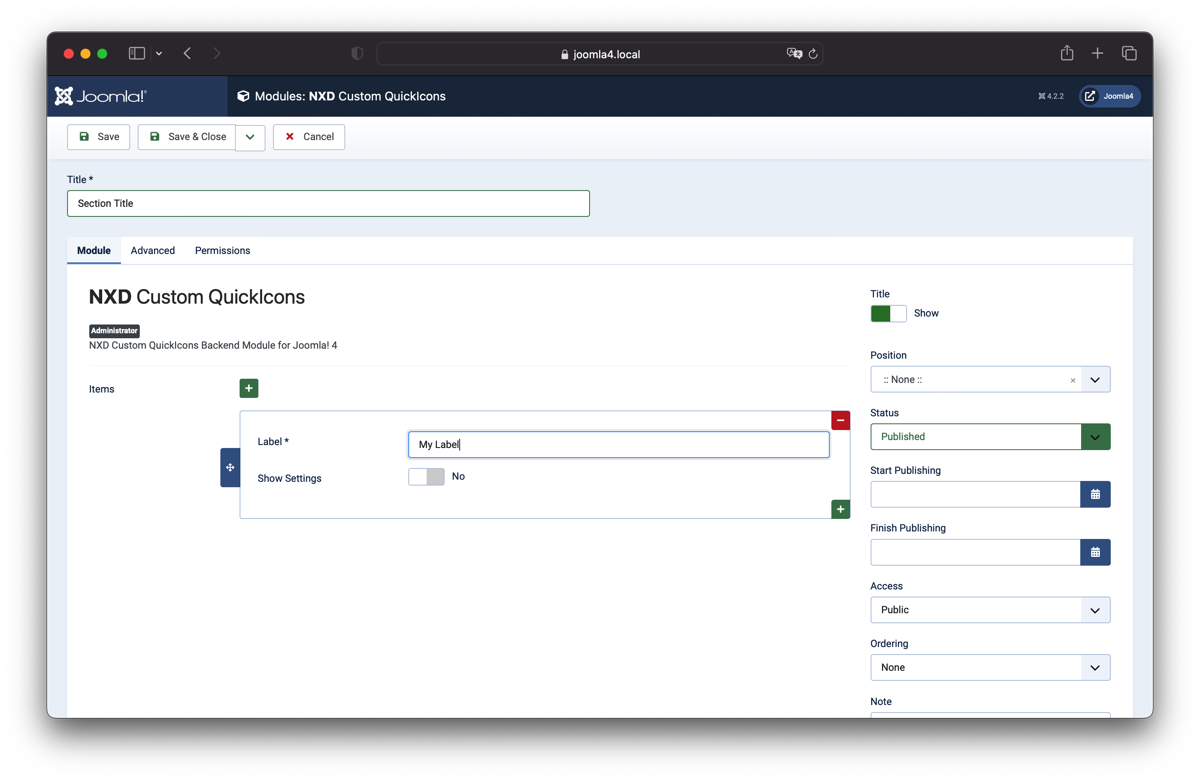
In the module settings screen you can define the links that should be displayed in the module. You can add links to the module by clicking the plus icon beside the Items label. Best Practice: Add a Title, Select a Position, Set to Published and Safe the module instance. After that you can add the links to the module.

The Label will be shown on the Card, to set additional Parameters enable the Show Settings Toggler, this option has only a Backend Effect and helps you to better organize the items on this view. To add an Url we need now to toggle the Show Settings option:
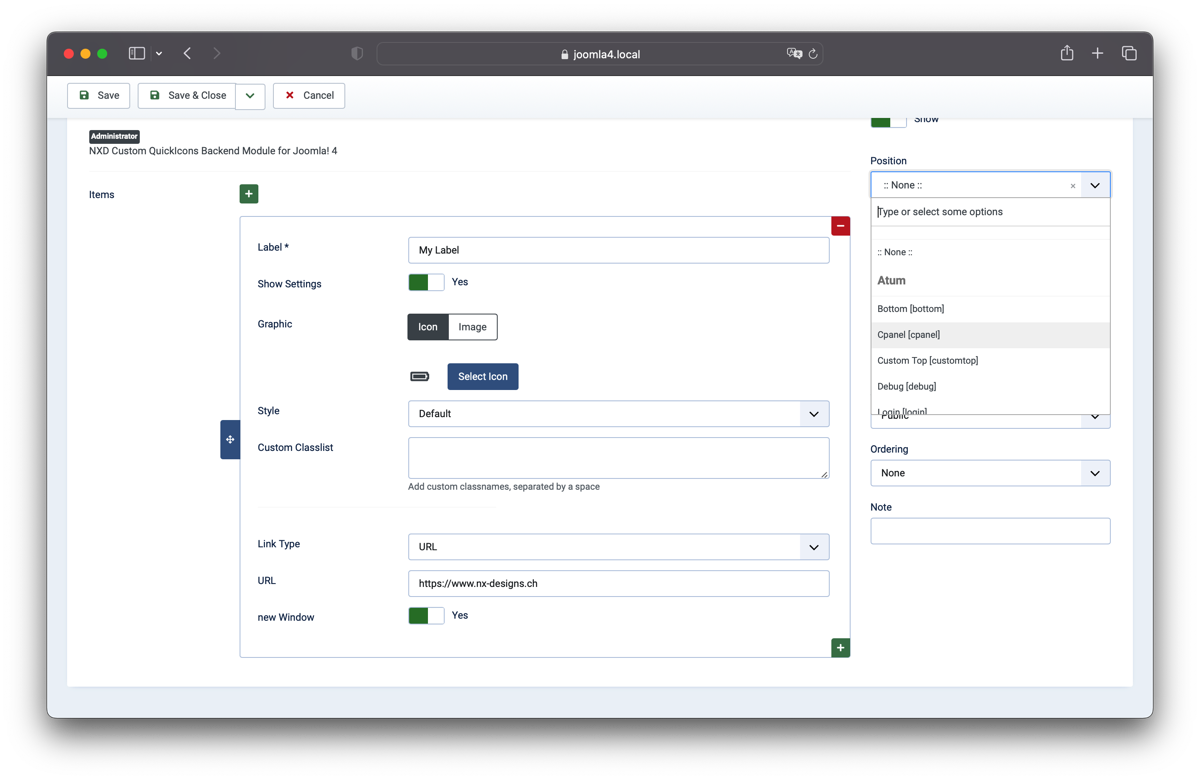
As you can see now there are a few options you can set for every link item. To add a link we can now set the Link Type to "URL" and enter the URL into the URL field:
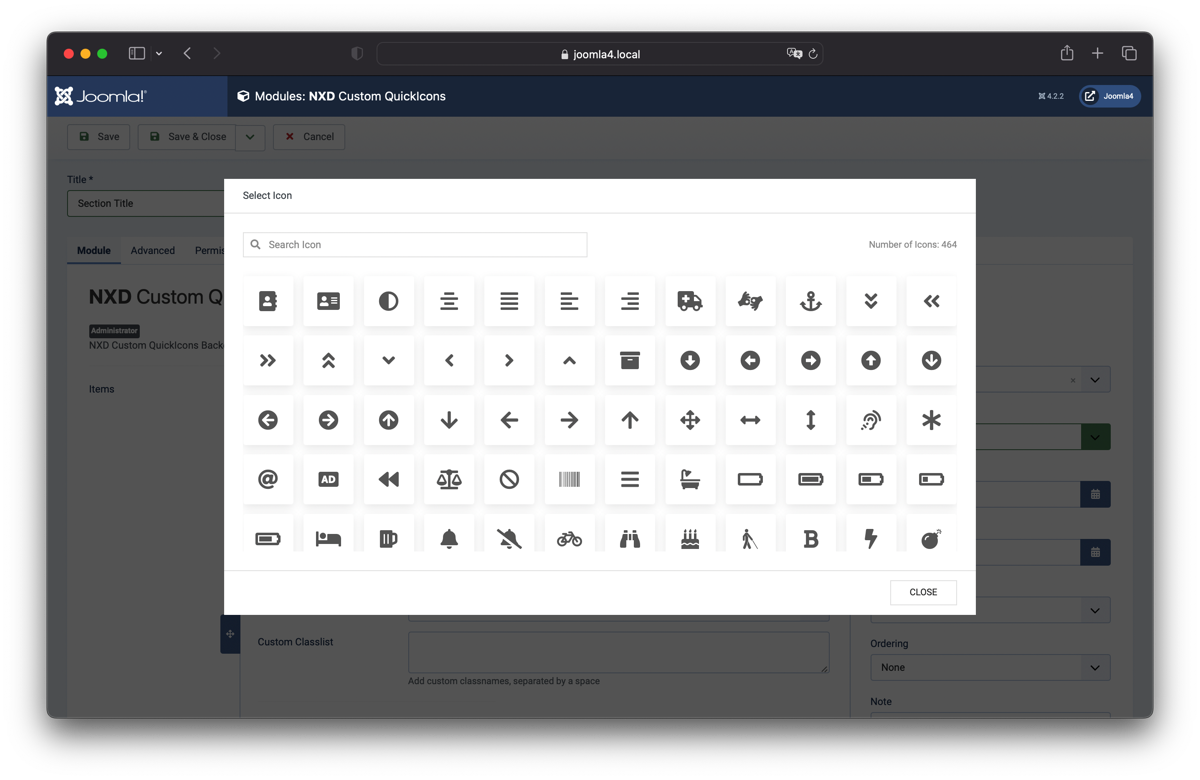
If you want to use an Icon for the link you can select one of the over 400 Icons after a click on the Select Icon Button, use the search function to find the right icon for your link, if you like one - click on it to set:
To add another Link simply reproduce the steps above - the module will flex the items on the Dashboard up to three columns (like the Joomla integrated Dashboard modules does).