Mix Internal & External Articles
Exposer not only allows you to display internal articles in a view, you can also include external articles. Clearly, for display within a grid, a list or the slideshow an article must be created. However, Exposer allows you to mix external and internal content by configuring the article's own URL A / B / C fields.
Brief Overview
- Create your articles and let Exposer display them as a grid, slideshow or list.
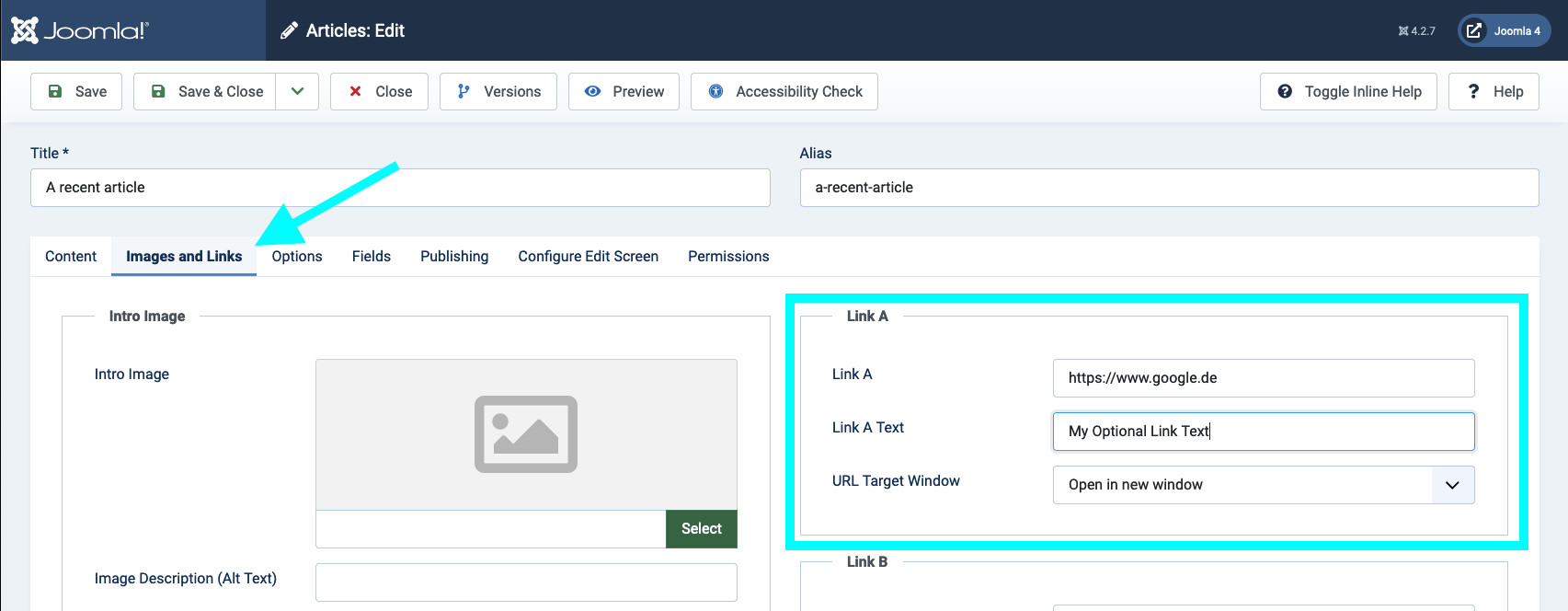
- Create a new article and navigate in the article editing in the tab Images and Links
- Now define an external URL (https://........) as URL A / B or C and assign a link text
- Save the article and navigate to the Exposer module and navigate to the URL tab
- Set the option for the corresponding URL field to use as link
- Display we choose
display Badgeand as Text Source we choose Article URL Title - Save the module and check the frontend
And that's all, the positioning of the badge is available in the tab of the respective layout. If no badge is displayed, check if the badge display is active for the respective layout. If the link does not work correctly make sure that you have entered the URL in the article edit screen including http. If the corresponding URL field is filled with information for an article, Exposer will create an external link. If the field is empty, no badge is displayed for this article and the link refers to the article (or the modal if configured accordingly).
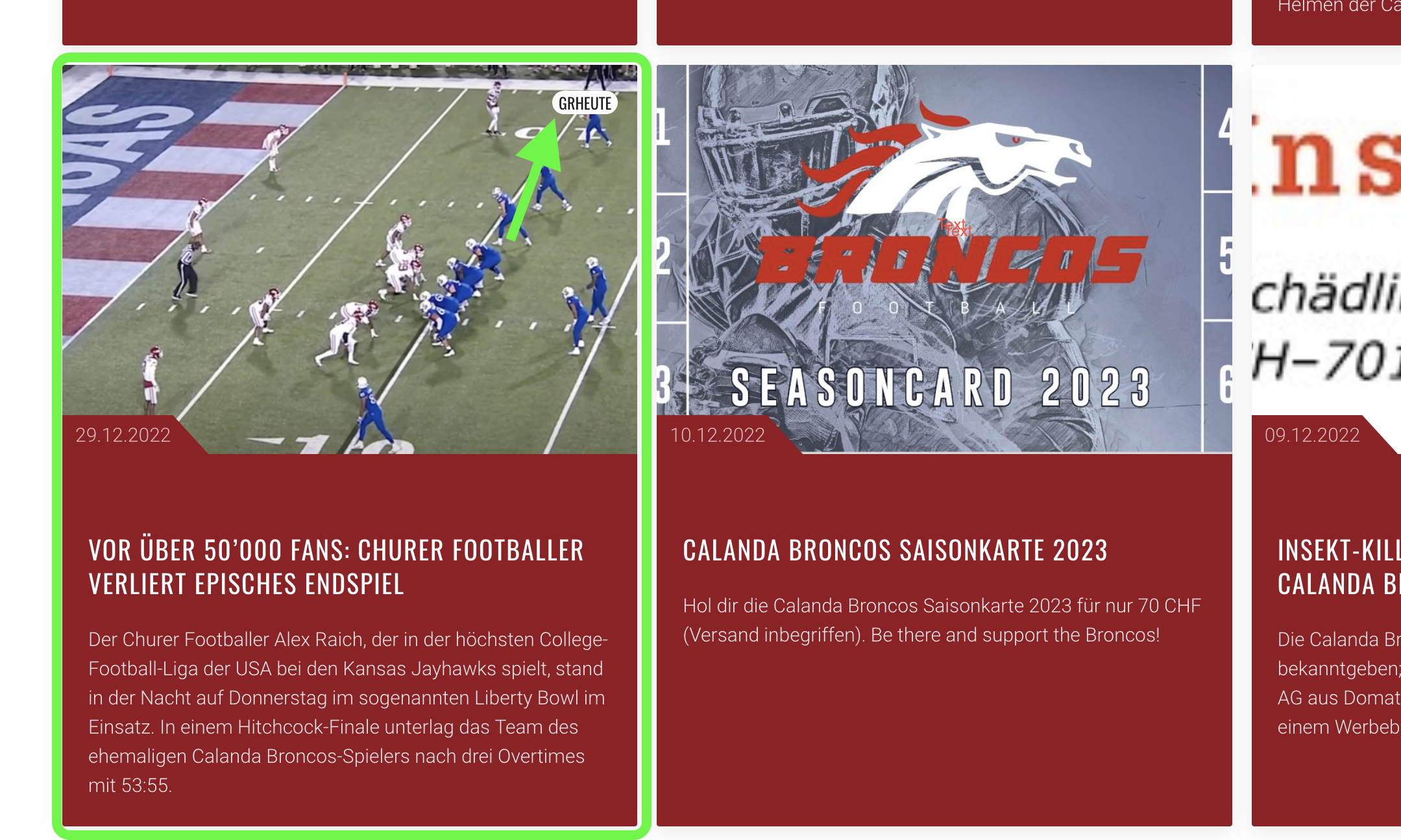
Note: The Screenshot above shows how an external article is displayed in the grid layout. The other grid items will link to the related article on click while this item will link to an external page from "GRHeute"
How to use
Setup one of the URL fields in the article edit screen to link to an external URL. In our Example we use URL A. You can find the URL fields in the tab "Images and Links".
Now you can configure the module to use the URL (if given) as a badge and or link. Navigate to the Exposer module and navigate to the tab "URL". Here you can configure the URL fields to use the URL as a link or badge.
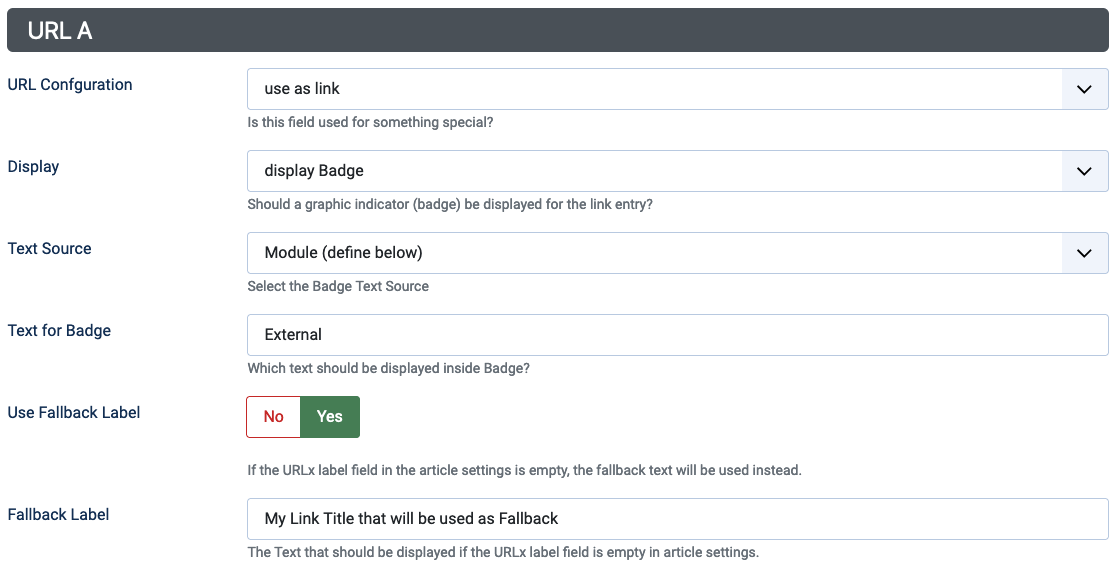
Please be aware that you can only use one URL field as a link. If you have configured URL A and C as a link, only the link of C will be used. If you want to use the link of URL A, you have to configure URL C as "Badge Info Only".
Target Window
The target window defines how the link should be opened. You have to set this option on article level. Use the URL Target Window option to define the target window for the URL field, Exposer's option Hyperlink Target has no effect on the URL field.