Helpfull Ressources for Joomla Content
This section contains links to helpfully Joomla Content related resources.
Articles
Introtext and Fulltext
Several of our extensions are based on the Joomla! Article Component (Exposer, WidgetsBox, ...) and also use its features, such as the Introtext method. The Tntrotext can be defined directly in every Joomla Article, for this you only have to set the so-called Readmore tag within the article. Every content editor for Joomla articles has such a Readmore Button. All text content set before this attribute is registered and handled by Joomla (and our modules) as Introtext. All text contents afterwards as Fulltext.
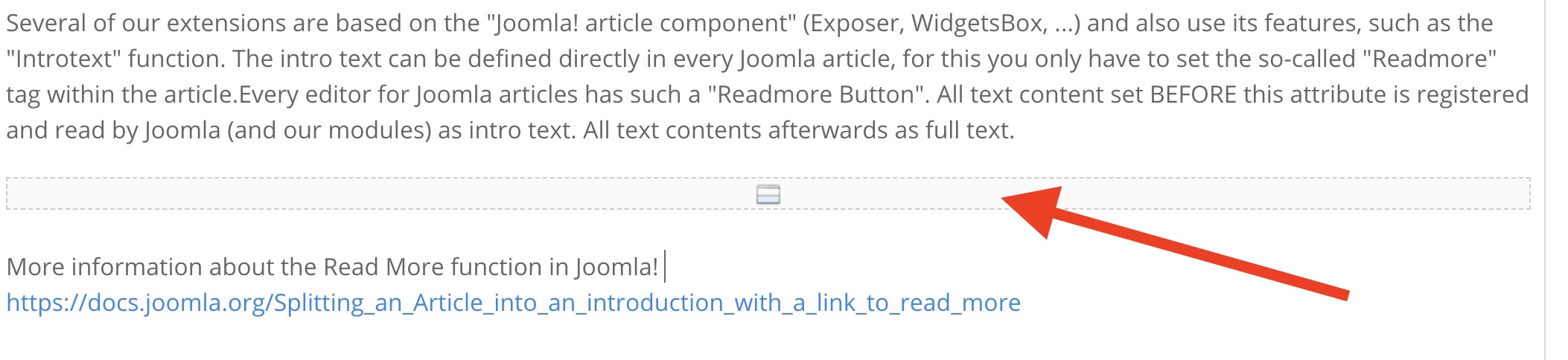
In TinyMCE (the default editor for Joomla) you can find the Readmore button in the Insert menu.
More information about the Read More function in Joomla! can be found in the official Joomla! Documentation.
Splitting an Article into an introduction with a link to read more
Categories
NXD Extensions support the Joomla! Categories. You can create categories for your articles and assign them to. All Article related extensions (Exposer, WidgetsBox, ...) support the Joomla! Categories. You can use them to filter your items.
Tags
NXD Extensions support the Joomla! Tags. You can create tags for your articles and assign them to. All Article related extensions (Exposer, WidgetsBox, ...) support the Joomla! Tags. You can use them to filter your items.
Modules
Publishing a Module Instance
There are multiple ways to publish a module within Joomla. You need to use the module assignment in the module settings in combination with a predefined module position. You can either use a custom module position (or load module id) in the article to show the module on the article page, or you can use one of your templates module positions that is available in the Article View.
Using a Module Assignment
Select On all Pages in the module assignment settings. Then you can use one of your templates module positions that is available like Banner for example. If you now check your Frontend you will see that the module instance got rendered on every page. Please be aware that each template has its own module positions, and you need to check the template documentation to find out which module positions are available.
Using Module ID in an Article
You can also load every module instance by its id. This is useful if you want to show a module on a specific article. Insert the following code in the article where you want to show the module:
{loadmoduleid 123}
Where 123 is the module id of the desired Exposer module instance.
Using a Custom Module Position
Another way to show a module on a specific article is to use a custom module position / to load a module position inside your article. Insert the following code in the article where you want to show the modules on position my-module-position:
{loadposition my-module-position}
Where my-module-position is the name of the custom module position you have entered the module settings.