Articles
This is a multipart tutorial that shows you how to use a single instance of the Oriel Pro module for Joomla! in multiple articles and create dynamic galleries. This way you can generate different galleries on different pages with only one module instance.
In the previous articles we generated our custom field, created a new module instance and defined the corresponding field as source. In the last step we will now add the required information to our articles.
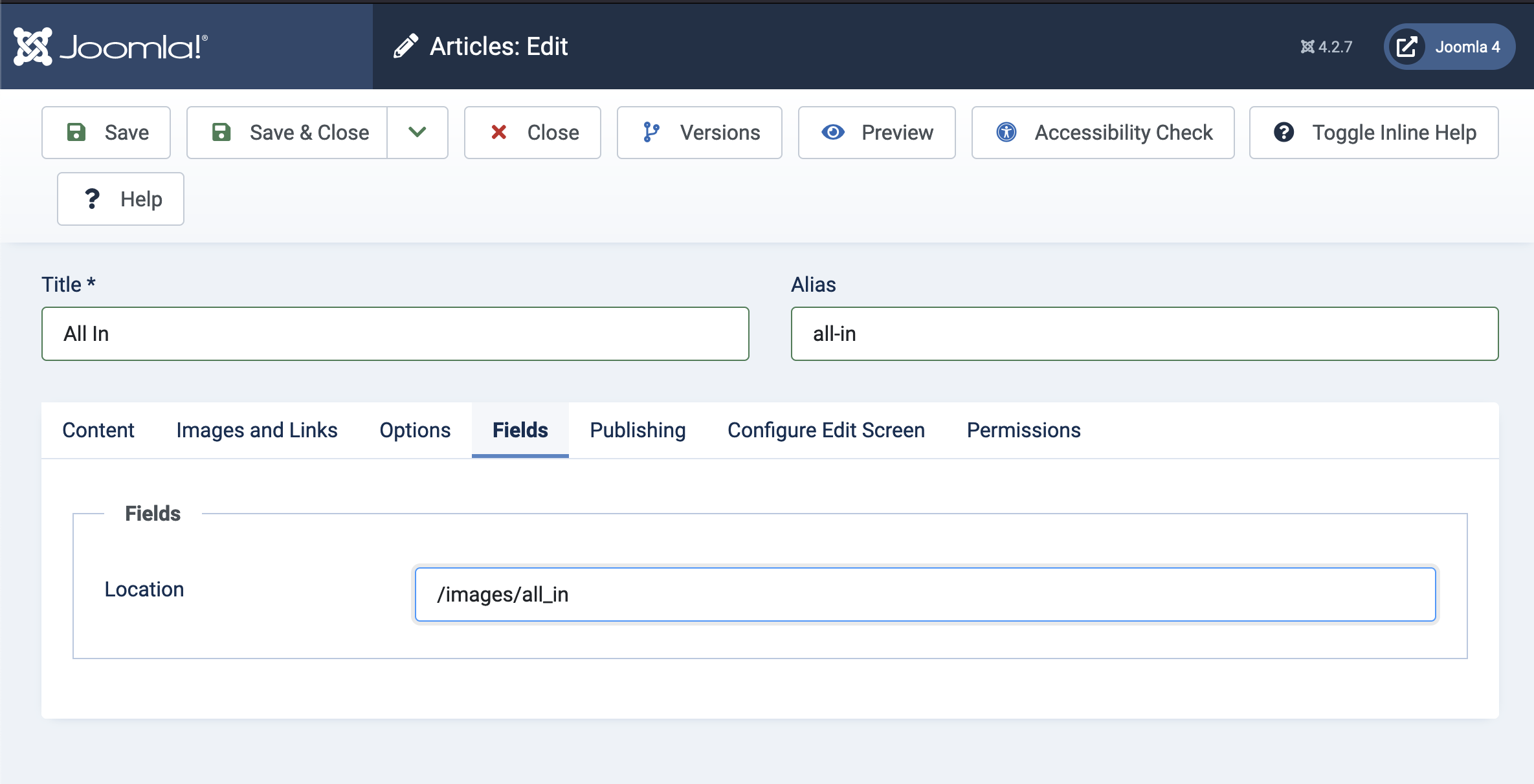
Set the Location Field
To do this, we create a new article or open one of our articles that is to be dynamically enhanced by Oriel and navigate to the Fields tab. As value for the Location field we either select the folder name of the hotel, if you are using nx-folderlist plugin, or type in the relative path to the folder where your images for this hotel are stored if you are using a text field type.
Add Module to Article
Last but not least, we now have to include Oriel in our article. To do this, we switch back to the editor area and insesrt Oriel via moduleid.
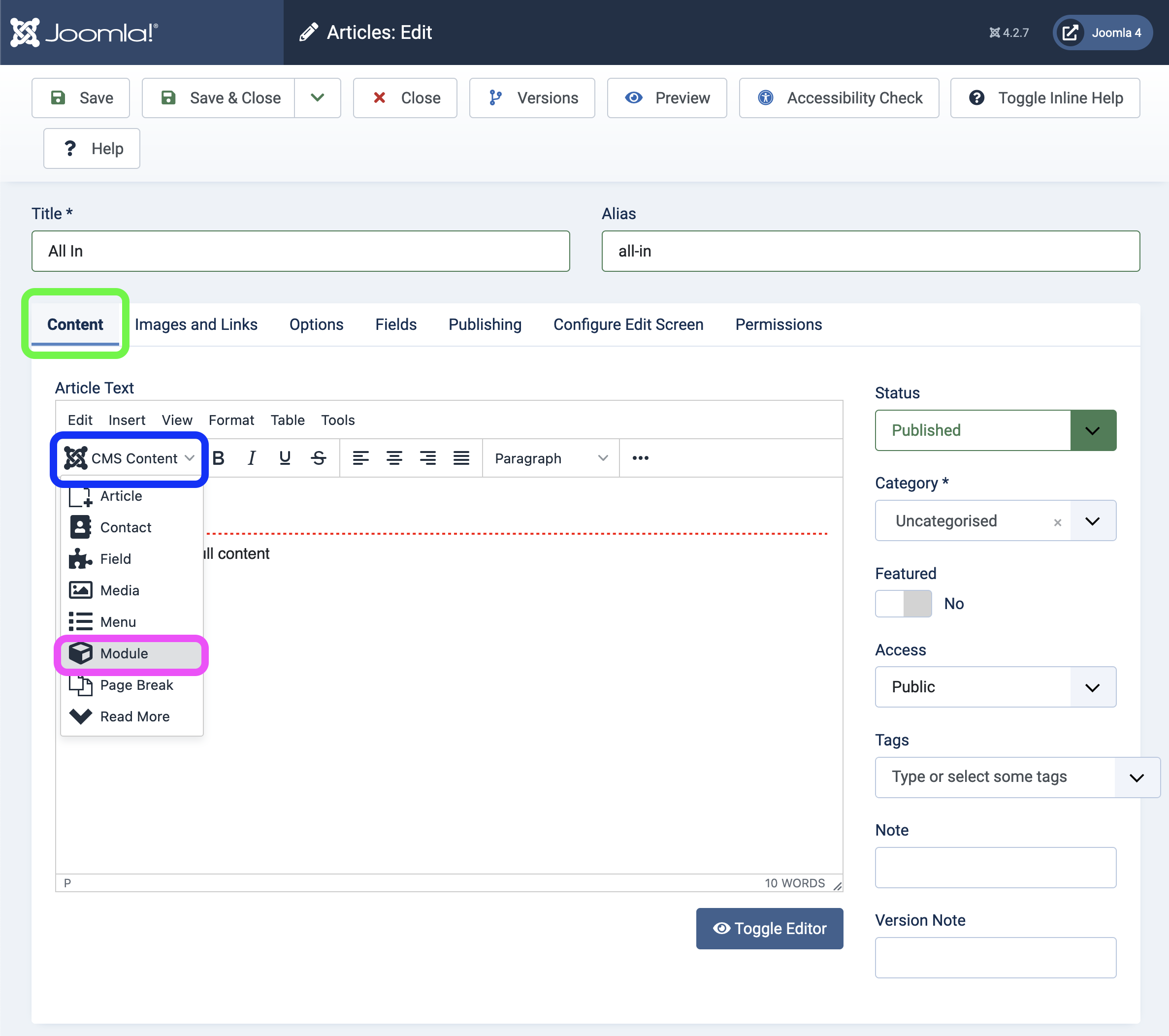
First switch into the Content Tab, place the cursor where you want to insert the module and click
on CMS Content > Module.
Select the module you created in the previous step.
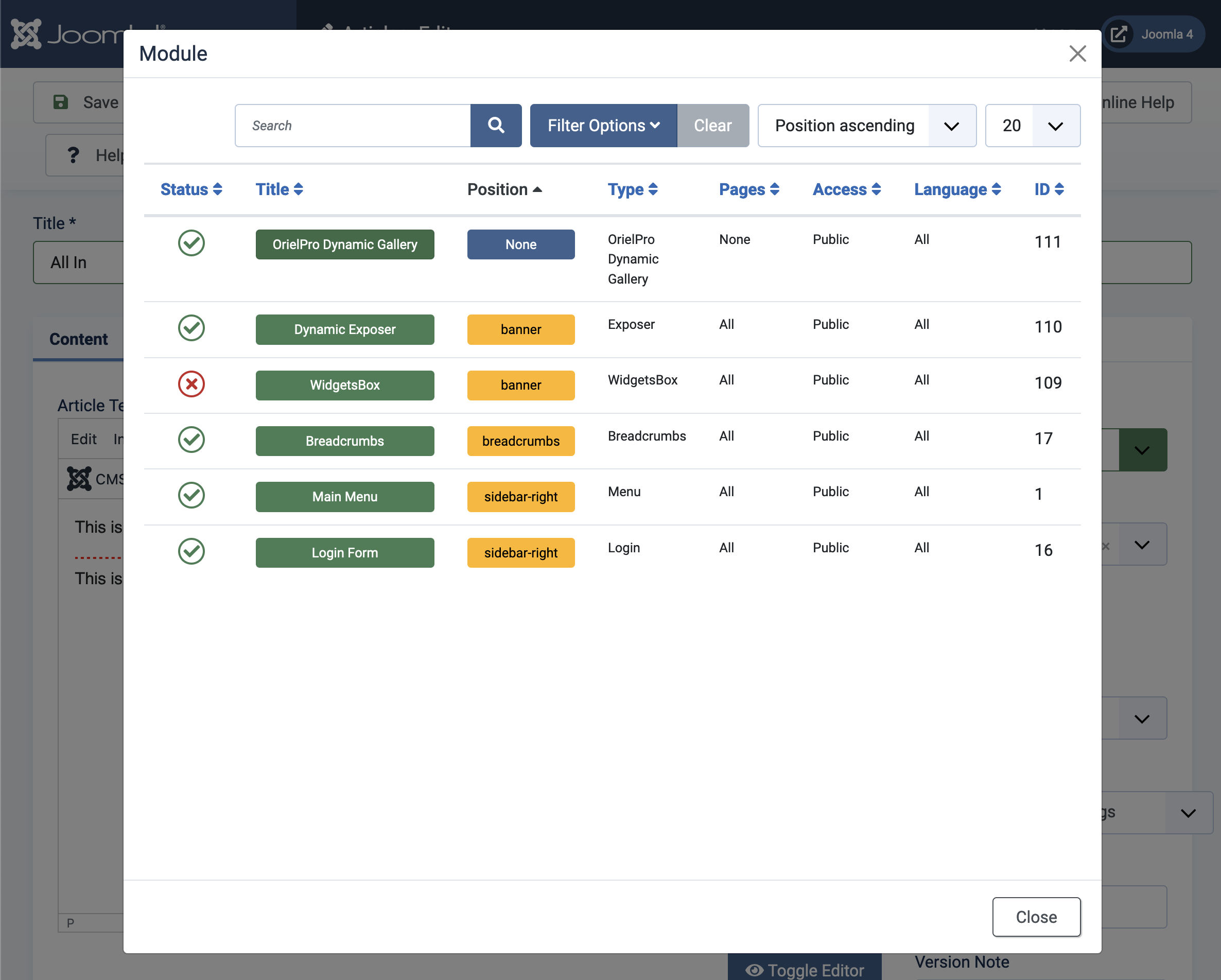
Important:
Make sure the Module Instance is Published - You can identify the Publishing state in the Status column of the screenshot above, The Module Instance has to have a green Checkmark.
Depending on the editor you use, there are different ways to include modules in your article. Of course PageBuilder are also supported. Please check the documentation of the corresponding editor / builder for a corresponding manual.
If we save the article now we will get the following view when we open the article in the frontend:
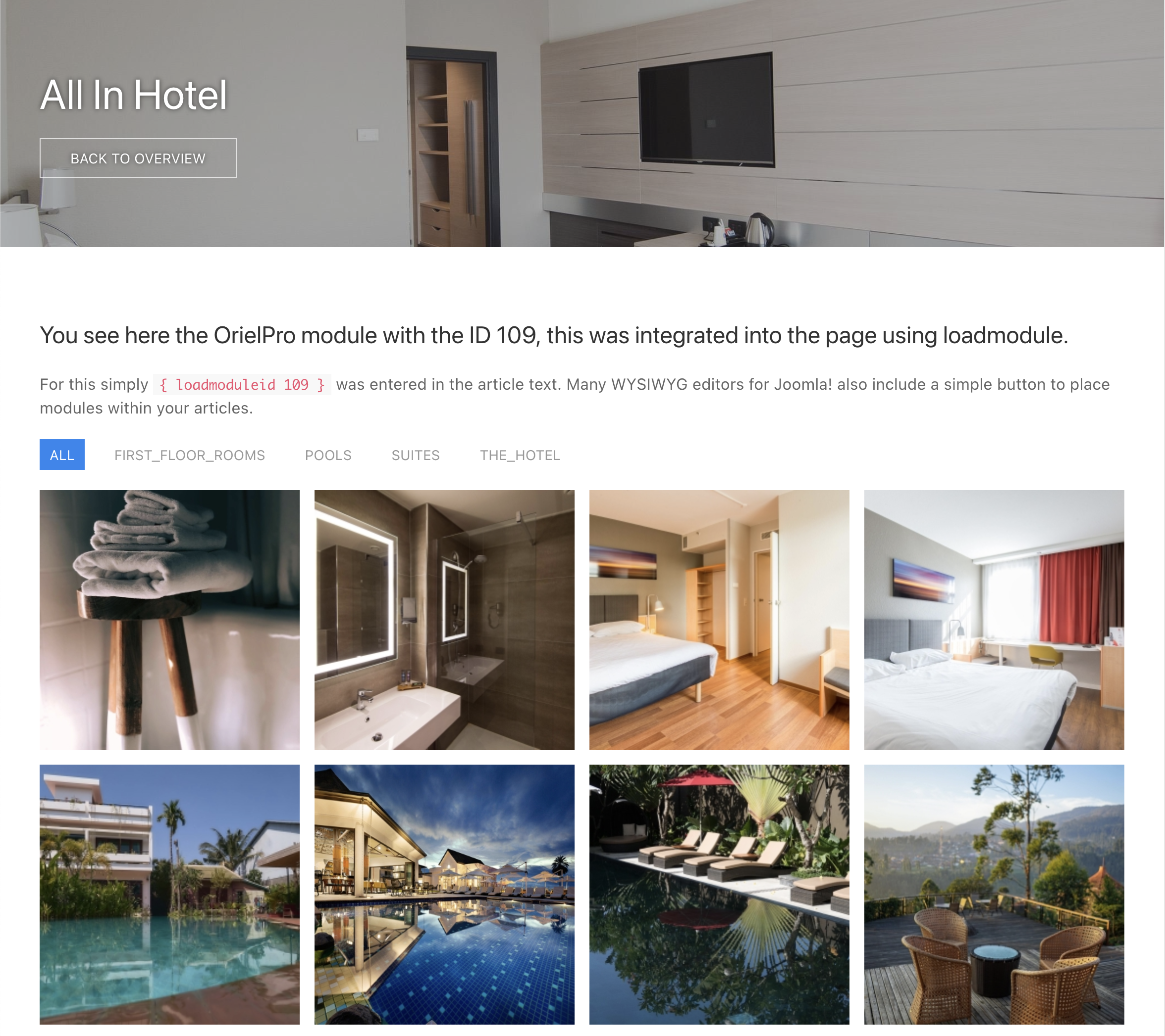
Isn't it great? Maybe you'll notice some more nasty things, I'd like to replace the underscores in the filter labels and a gap between the pictures would be better... Checkout the related article Custom Rules Introduction to learn how to do this.
Repeat the steps on this page for all your articles (Hotels) - just select the related folder that holds your hotels images in every article and place the Module Instance inside the Article.