Create a Customfield
This is a multipart tutorial that shows you how to use a single instance of the Oriel Pro module for Joomla! in multiple articles and create dynamic galleries. This way you can generate different galleries on different pages with only one module instance.
We create the custom field first. For this we proceed as follows.
Customfields will not appear in the Components menu. But in the Article Manager you will see two views in the left menu.
To create Customfields for Joomla 3.x & 4.x open the Fields Manager and click on the New button.
The Fields Manager can be found in the Content menu Content > Fields.

- Click on
Content > Fieldsin the Admin Control Panel - Click Fields in the menu on the left side
- Click the button New in Toolbar on the top
In our example we need the relative path to the images, i.e. the folder in which the images are located. If you have purchased Oriel Pro, you can use a custom field of type nx-folderlist. This custom field helps you to select your image folder on the server via a drop-down menu.
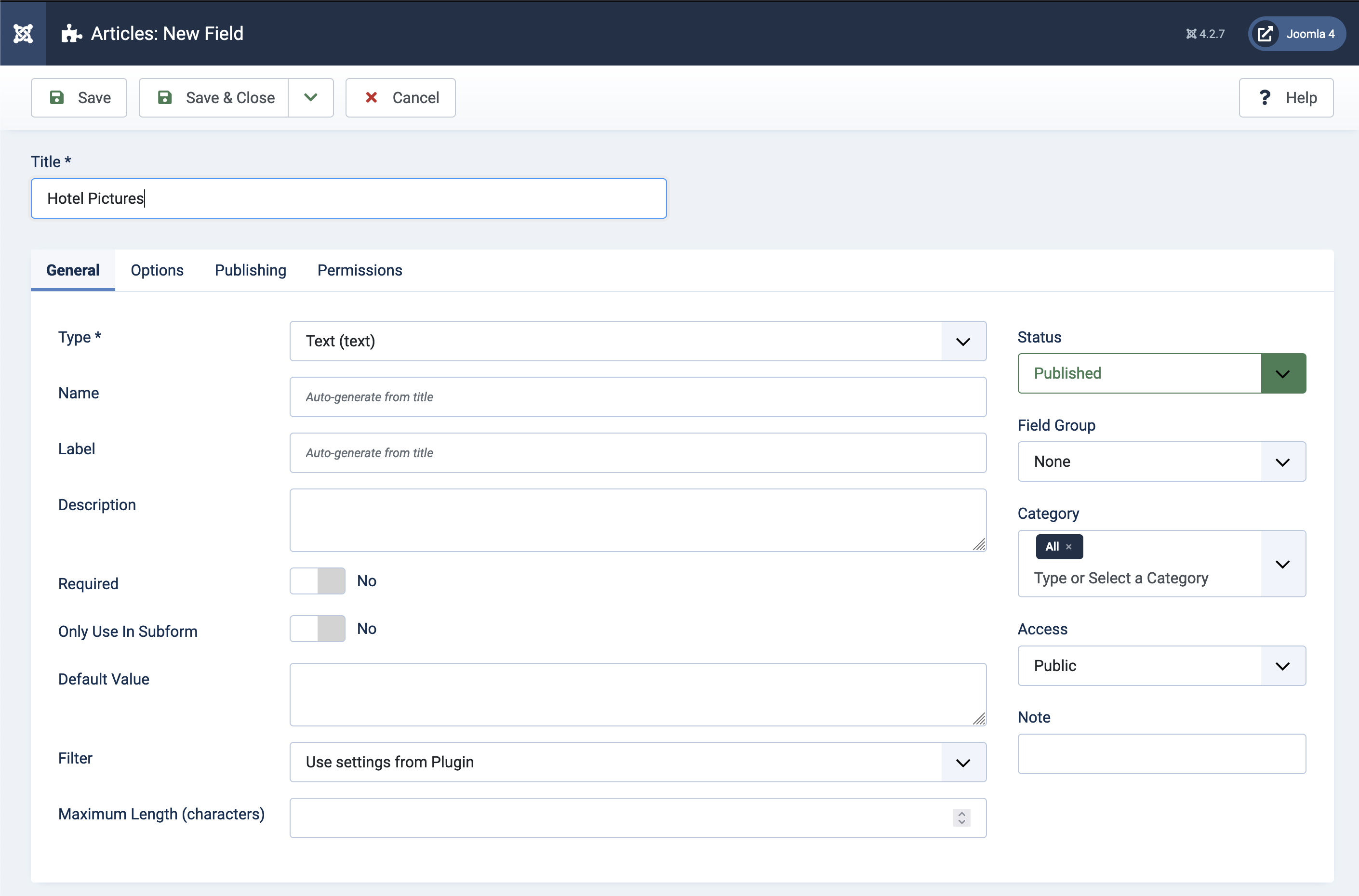
If you do not want to or cannot use the nx-folderlist plugin, you can of course simply use a field of type Text,
but then you have to enter the path to the folder manually. In our example we use a field of type Text. Give it the
name
Hotel Pictures and save it.
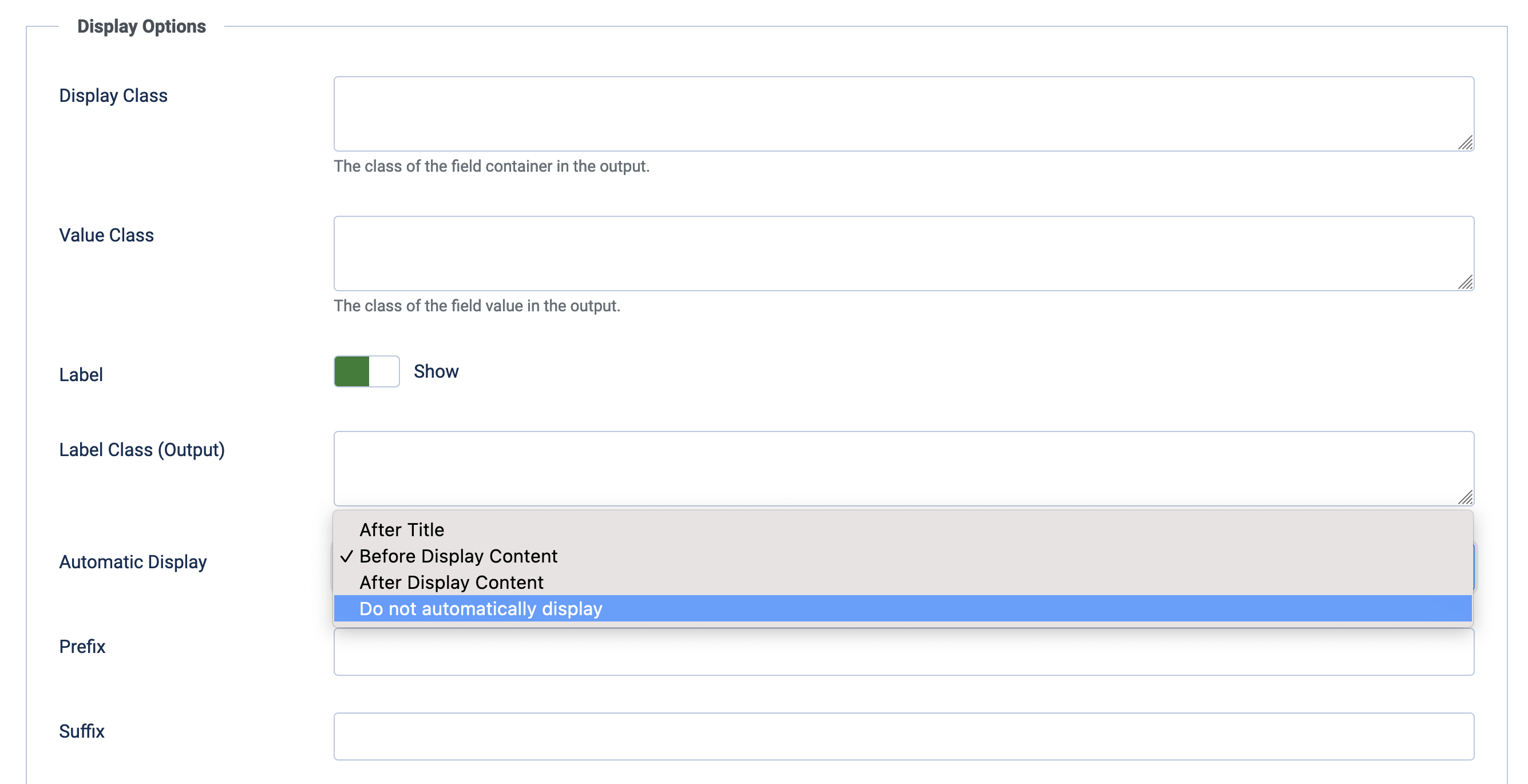
Don't forget to set the option for Automatic Display to do not display automatically in the Options Tab so that the field is not rendered within the article (after all, we only need to specify the path for Oriel Pro here).
In our example we will not assign the newly created field to a group or category, so we can edit the value of the field later in the Article Editor using the Fields Tab.