Hub Content
This Section of the Settings is to style the Hub Content. The Hub Content is the area where the Hub Item Contents For the Elements of Type Article, Editor,Plain Text or Module are displayed. Be aware that especially Content of Types Article or Module might will add additional Styles from itself or your Template which may styles the Content itself. Please note that the Link and Anchor Content Types are not affected by these settings.
Hub Content Container Position
The Hub Content Container Position allows you to set the position of the Hub Content Container. Available Options are:
- Hub aligned: The Hub Content Container will be aligned to the Hub Items Container. For
top/bottompositioned hubs the Hub Content Container will be centered in the Viewport. Forleft/rightpositioned hubs the Hub Content Container will be aligned to the top of the Hub Items Container. - Window centered: The Hub Content Container will be centered in the Viewport.
- Bottom aligned: The Hub Content Container will be aligned to the bottom of the Hub Items Container only available
for
left/rightpositioned hubs. - Left aligned: The Hub Content Container will be aligned to the left of the Hub Items Container. Only available for
top/bottompositioned hubs. - Right aligned: The Hub Content Container will be aligned to the right of the Hub Items Container. Only available
for
top/bottompositioned hubs.
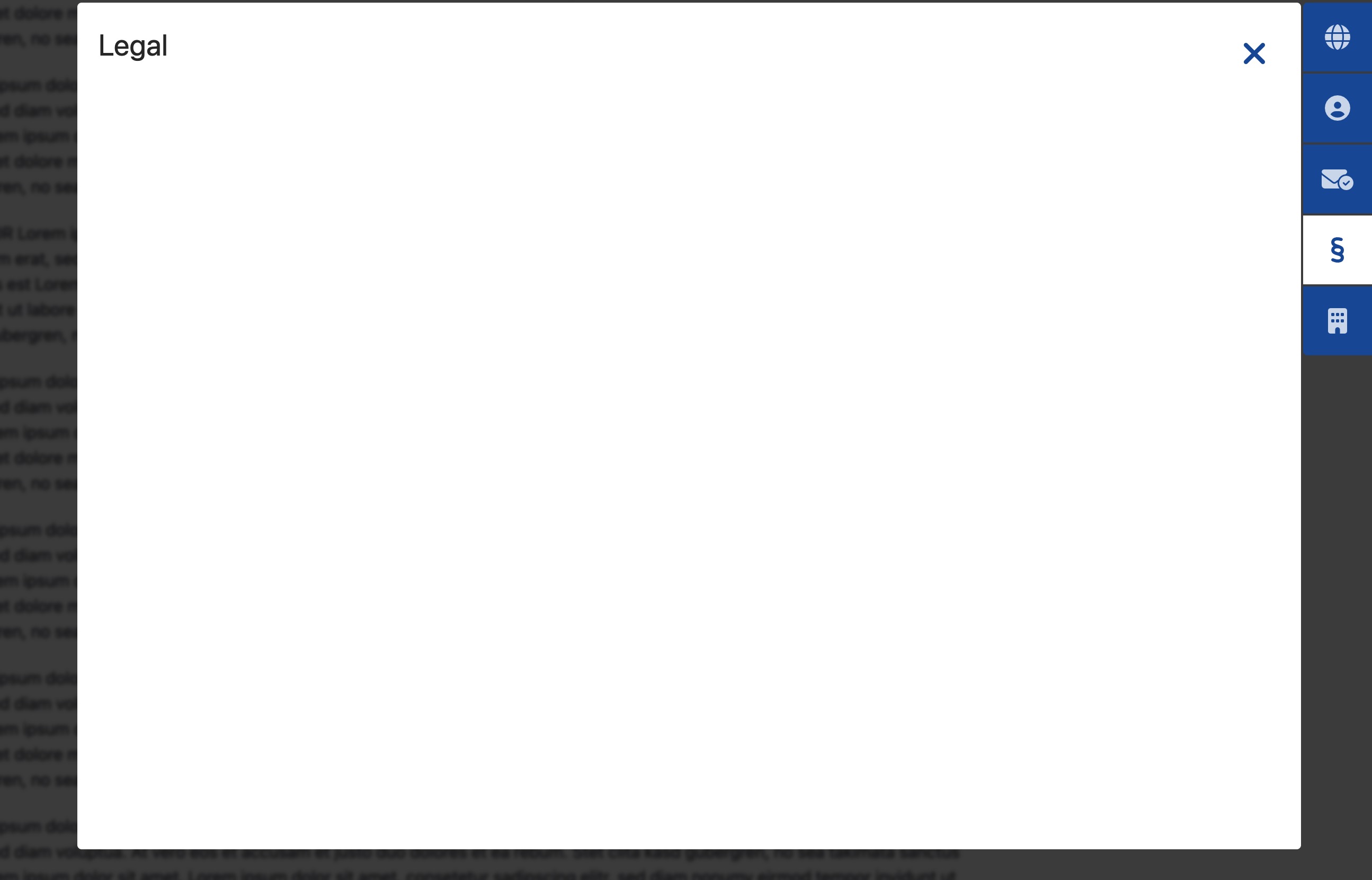
When the Hub Position left or right are selected you can define the Hub Content Container Position topor bottom
for the container alignment.
Default (Top) alignment Example
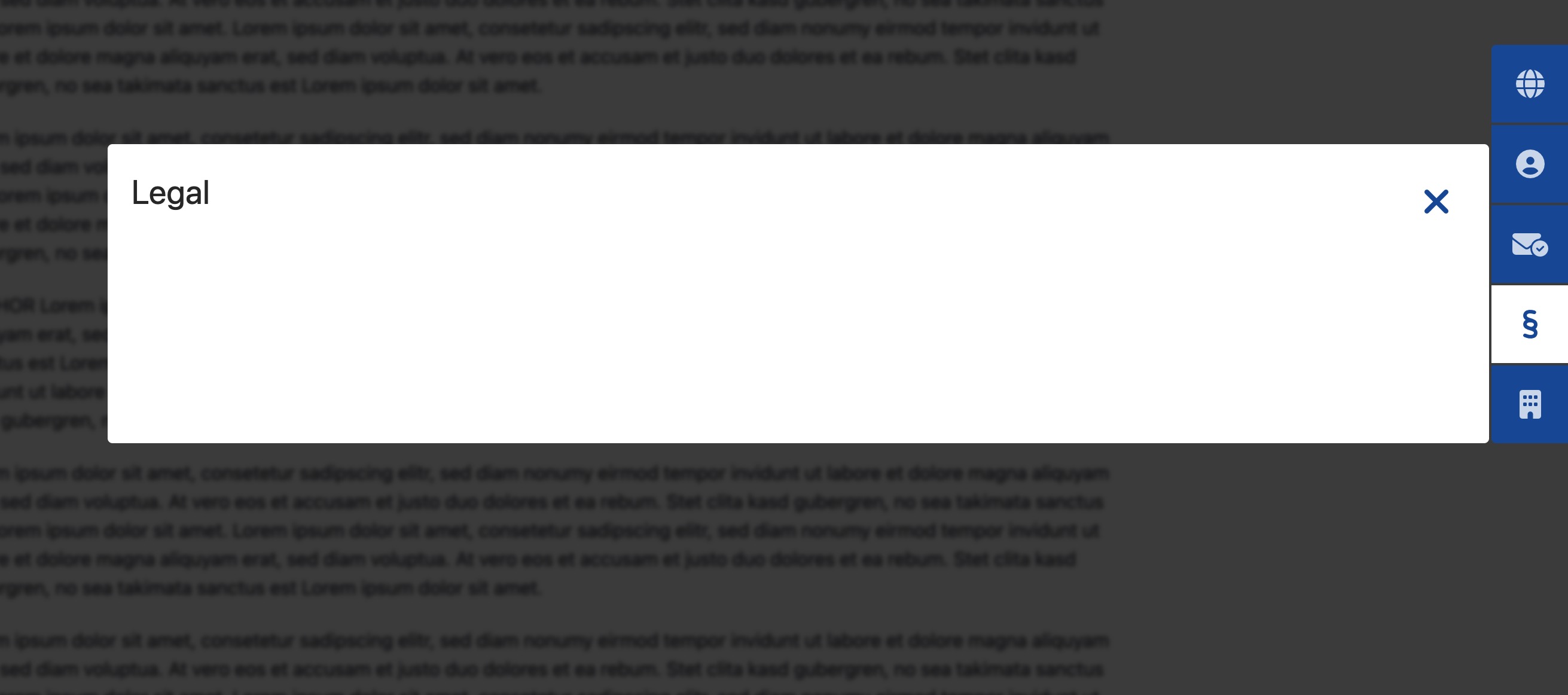
Bottom alignment Example
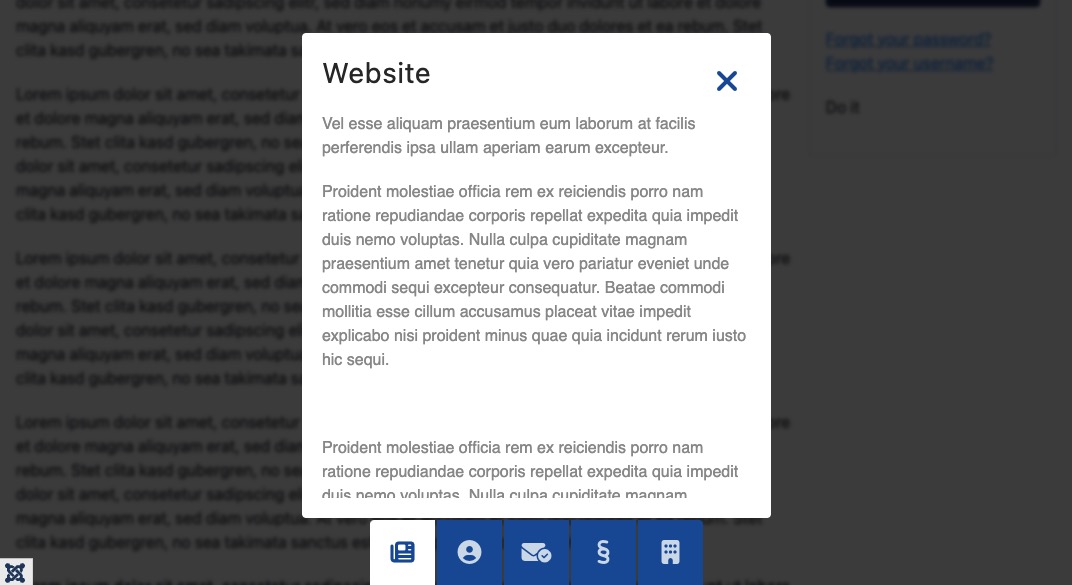
Hub bottom positioned Hub alignment Example
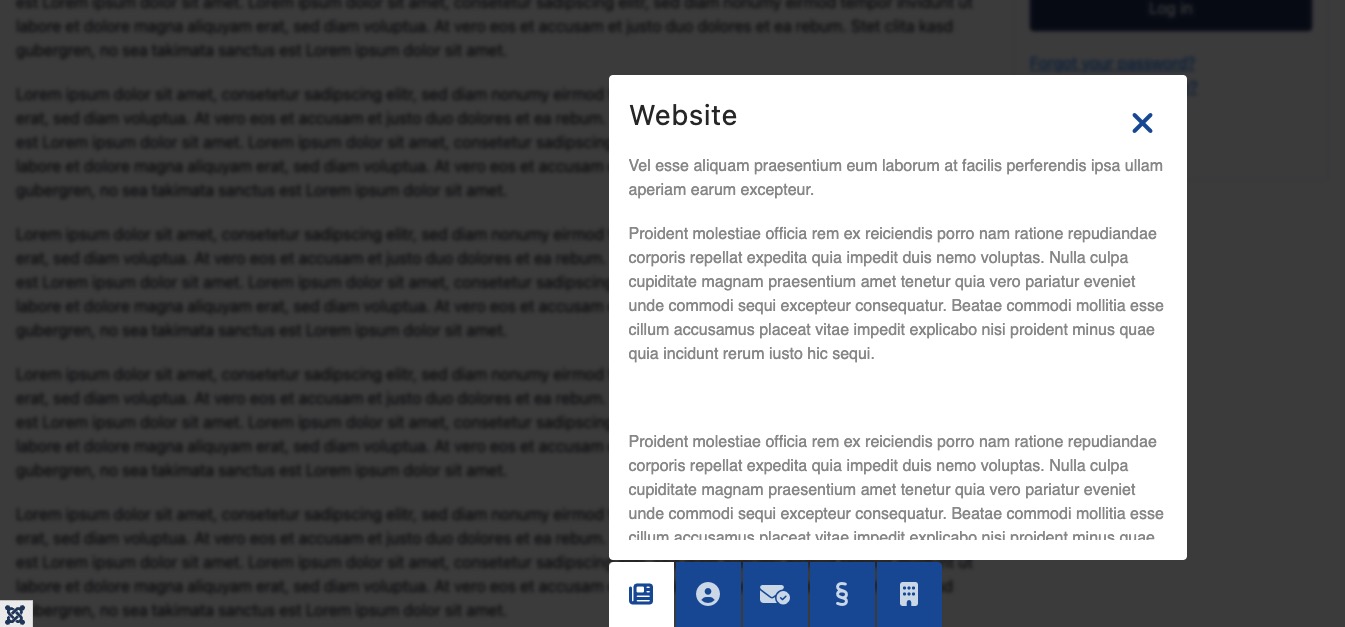
Hub bottom positioned alignment to left Example
Hub bottom positioned alignment to right Example
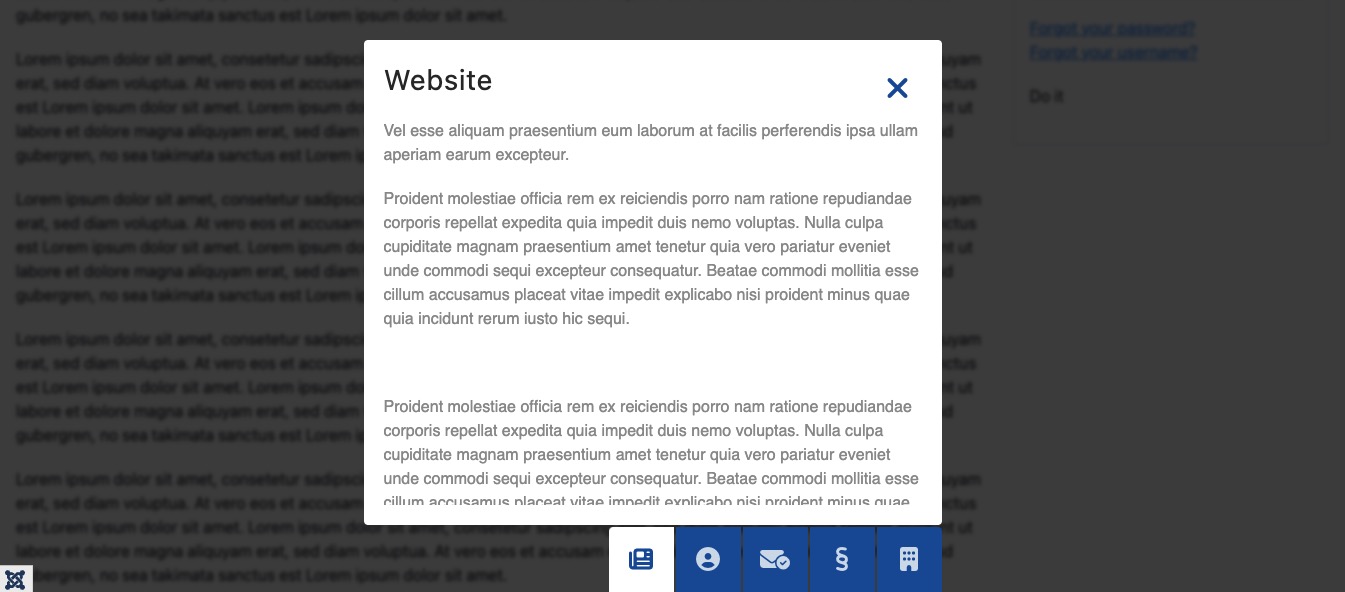
The examples above shows the different Content Positions based on the Hub Positions right and bottom. The
same applies to the other Hub Positions (left/ top).
Bottom min height
If the option for Bottom alignment is selected you can define the minimum height of the Hub Content here.
The available content height options depend on the selected position of the hub and the reference frame for content
positioning. With Hub Position left / right and a Hub aligned (for the content) is set, no height parameters are
available
here the module automatically calculates the content height based on the screen size.
However, if Bottom alignment for the Hub Positions left/ right is used, a minimum
height must be defined which will be used as the height of the content container. If the hub is positioned top /
bottom,
a height of the content can be defined.
Content Border Radius
Define the Border Radius of the Hub Content. The Border Radius can be set in Pixels, em, or rem.
Content Padding
Define the Padding of the Hub Content. The Padding can be set in Pixels, em, or rem.
Content Width
Define the Width of the Hub Content. The Width can be set in Pixels, em, or rem.
Content Height
Define the Height of the Hub Content. The Height can be set in Pixels, em, or rem.
This option is only avaliable when the Hub Position is set to top or bottom.
Title Tag
Define the HTML Tag of the Title. The Title Tag can be set to h1, h2, h3, h4, h5, h6, div, * span*, p or header.
Animations
Content Animation In
Select the Animation in method for the Hub Content. The following options are available:
- Fade In: The Hub Content will fade in.
- Slide from Left: The Hub Content will slide in from the left.
- Slide from Right: The Hub Content will slide in from the right.
- Slide from Top: The Hub Content will slide in from the top.
- Slide from Bottom: The Hub Content will slide in from the bottom.
Content Animation Out
Select the Animation out method for the Hub Content. The following options are available:
- Fade Out: The Hub Content will fade out.
- Slide to Left: The Hub Content will slide out to the left.
- Slide to Right: The Hub Content will slide out to the right.
- Slide to Top: The Hub Content will slide out to the top
- Slide to Bottom: The Hub Content will slide out to the bottom.
The Best effect is achieved when the Slide Direction of the In and Out Animation is the same as the Hub Position.