Positioning
In this section of the Settings you can define the position of the NXD HyperionHub on your page.
Options
Hub Position
The NXD HyperionHub can be displayed on the left, right, top, or bottom of the page. The Position will be fixed and the Hub will be displayed on top of the content. Select the desired position here.
Available Options are:
- Top The Hub Icons will be displayed on the top of the page.
- Bottom The Hub Icons will be displayed on the bottom of the page.
- Left The Hub Icons will be displayed on the left side of the page.
- Right The Hub Icons will be displayed on the right side of the page.
Hub Offset Top
The Hub Offset Top allows you to set the distance between the top of the page and the top of the Hub.
This Setting is only available if the Hub Position is set to left or right.
Available Options
You can either define the distance in pixels, viewport height (vh), em, or rem.
Z-Index
The Z-Index defines the stacking order on screen. The higher the Z-Index, the more on top the element will be displayed. It might be necessary to adjust (increase) the Z-Index if the Hub is not displayed correctly.
Hub horizontally centered
When top or bottom are selected this option will be available and allows you easily center the Hub horizontally
without messing around with additional options.
Hub Offset Left
The Hub Offset Left allows you to set the distance between the left side of the page and the left side of the Hub. See the next section for more information. Available Unit Options are:
- Pixels
- Viewport Width (vw)
- auto
Hub Offset Right
The Hub Offset Right allows you to set the distance between the right side of the page and the right side of the Hub. See the next section for more information. Available Unit Options are:
- Pixels
- Viewport Width (vw)
- auto
If you set one of the Hub Offset Left or Right to a fixed value, the other side should be set to auto.
Aligning the Hub manually horizontally
There might be cases where you want to align the Hub manually. In this case, you can use the following options which are
available when the Hub Position is set to top or bottom and the Hub hoizontally centered option is set to no.
Align the Hub to one side
The easiest (and most common) way to align the Hub is to set the Hub Offset Left or Right to the desired value. This will align the related side based on the defined value if the opposite side is set to auto (The auto Option is available in the Unit selector).
So the following setup will align the Hub to the Bottom Left side of the page with a distance of 50px:
- Hub Position:
Bottom - Hub Offset Left:
50px - Hub Offset Right:
auto

When adding two values
If you add for example 900px to the Hub Offset Right as well, the Hub would be aligned to the Bottom of the page but the container's width would be enlarged to reach the right side of the page with an offset of 900px ( green). The Hub items itself would still be aligned centered inside the container.
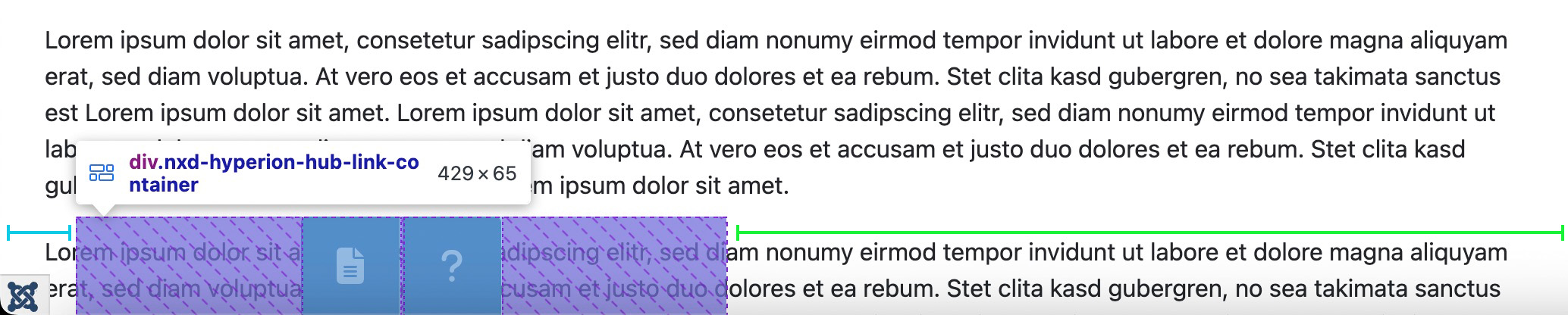
Please note that this might will work but could lead to unexpected results on different screen sizes. It is recommended to only define one side and let the other side be set to auto.
the Hub Content will normally be displayed along the Hub Position. If you want to align the content to the center of the screen you can use the Hub Content Alignment option.